
Your products are live. Are they indexed by Google?
You have invested in your online store, product descriptions and SEO. Now get a clear view of which pages Google has indexed — and which ones need attention.
Google Index Checker by Re{code} Commerce is a free bulk Google index checking tool for ecommerce owners, website managers and SEO teams. Import your XML sitemap, connect Google Search Console and review products, categories and content pages in one dashboard.
Make it part of a five-minute store health review: check the latest results, filter pages that are not indexed and decide what to investigate next. Initial setup and a fresh bulk check can take longer, depending on your sitemap and API limits.
Request Free Access View the Setup Guide
The tool is free and supplied as is. SpeedyIndex is optional and charges separately for its services.
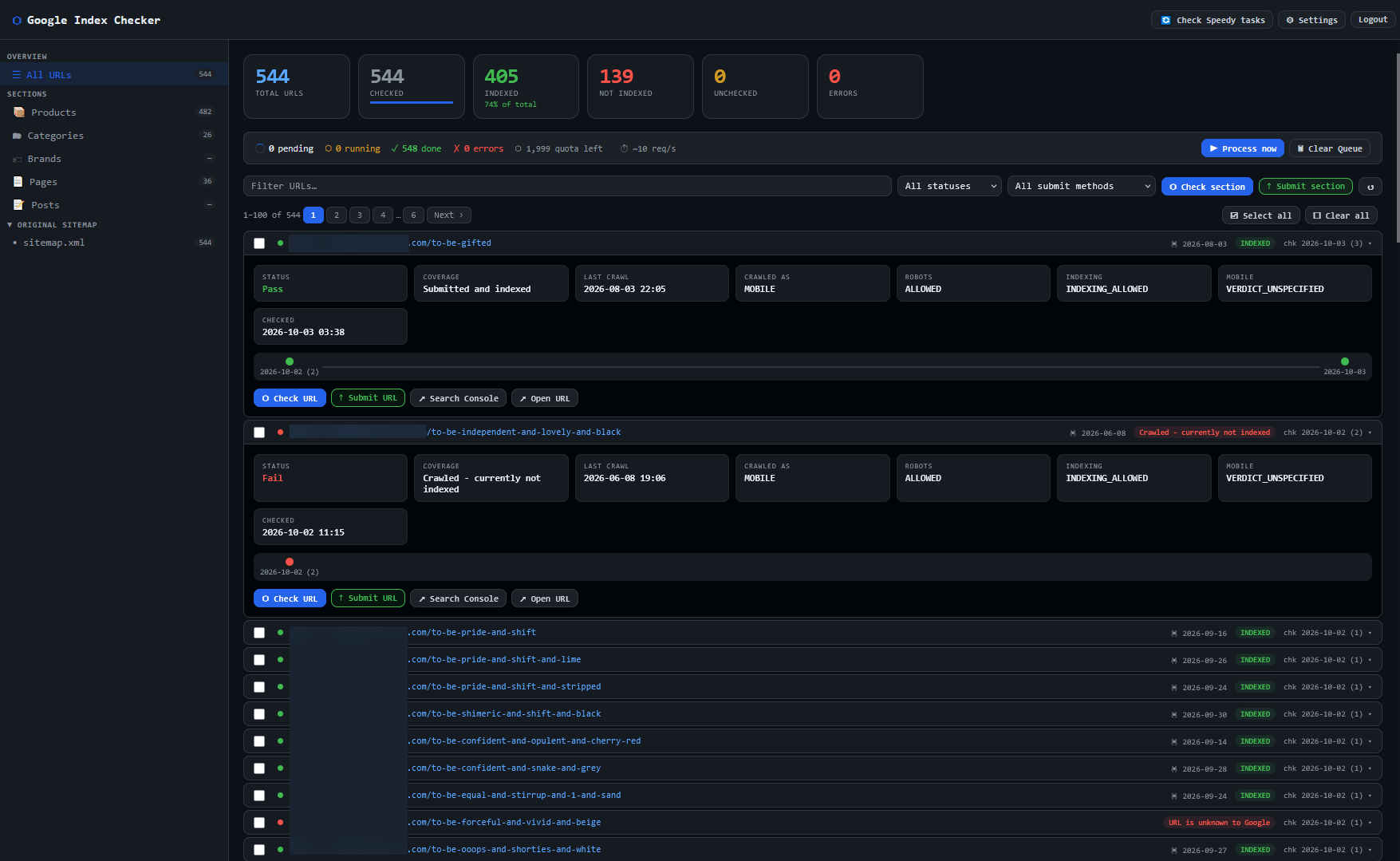
A clearer picture of your store's Google index coverage
Stop checking product URLs one by one. Use your sitemap as a working list, run bulk URL inspections and focus on the pages that matter to your business.
- See total URLs, checked pages, indexed pages, pages not indexed, unchecked URLs and errors at a glance.
- Import an XML sitemap or a sitemap index containing multiple child sitemaps.
- Review products, categories, brands, pages and posts separately, using platform-aware sitemap classification.
- Filter by URL, index status and submission status to narrow down your next action.
- Open a URL to see Google's reported coverage state, last crawl, crawler type, robots status and indexing permissions when available.
- Recheck a single URL or a whole section and keep a history of inspection results.
- Manage check and submission queues without switching between separate lists.
- Open the page or its Search Console inspection directly from the dashboard.
Built for ecommerce workflows
Check newly added products, review your catalog after a migration or redesign, and follow up after SEO changes. The tool includes sitemap profiles for OpenCart, Magento and BigCommerce, alongside generic rules for common WordPress, osCommerce and TrueLoaded sitemap structures. Classification depends on your sitemap and URL structure; a platform profile can be selected manually.
Know what needs investigation
A page that is not indexed is not automatically a broken page. Some URLs are intentionally excluded or represented by a canonical page. Start with products and categories you actually want customers to find, then use the reported status to guide your developer or SEO specialist.
For example, a product marked “Crawled — currently not indexed” needs a different investigation from a page blocked by robots.txt. The dashboard helps you see that distinction before spending money on indexing submissions.
Track changes instead of guessing
Each completed check adds a result to the URL's history. Compare repeated inspections to see whether a page has moved from not indexed to indexed, or whether a previously indexed page needs another review.
Check first. Submit selected URLs when needed
Index checking and indexing submission are different jobs. Google Index Checker brings them into one workflow, while keeping the result of a check separate from the status of a submission.
Google Search Console: inspect your own website
Connect your Google service account to inspect URLs belonging to your verified Search Console property. This route does not require a SpeedyIndex balance.
The URL Inspection API returns Google's stored information about a URL. It is not a live crawl test and does not request indexing. Google currently limits inspections to 2,000 requests per day and 600 per minute per Search Console property. Larger catalogs need to be checked over multiple runs or days.
Google Indexing API: a restricted submission option
The tool also includes a Google Indexing API submission option. Google's official support is limited to pages with JobPosting data or BroadcastEvent embedded in VideoObject. Ordinary product, category and blog pages are not supported use cases.
An accepted API notification is not proof that a URL has been indexed. Use this option only for eligible pages and follow Google's approval, ownership and quota requirements. For ordinary store pages, use Search Console's manual request-indexing workflow where appropriate, maintain your sitemap and resolve underlying site issues.
Read Google's official Indexing API restrictions
SpeedyIndex: optional paid indexing and index checks
Want to submit selected non-indexed URLs through an external service? Connect your own SpeedyIndex account, add your API key and send URLs from the same dashboard. Keep Google Search Console as your inspection method if you only want to use SpeedyIndex for submissions.
We selected SpeedyIndex after evaluating ten indexing providers for our own workflow. It is an optional integration, not a requirement for using the free checker.
SpeedyIndex supports balance top-ups by credit or debit card, PayPal and cryptocurrencies including USDT. Its current service terms include a pay-per-result option with token refunds for URLs not indexed by its reporting deadline. Confirm the applicable mode, pricing and refund terms with SpeedyIndex before submitting.
No external service can guarantee that Google will index every URL or improve its ranking. A submission does not fix a noindex directive, inaccessible page, incorrect canonical or content-quality problem.
Affiliate disclosure: this is our referral link. Re{code} Commerce may receive a commission if you register and purchase through it. SpeedyIndex services are billed separately by the provider.
How to connect Google Search Console and your sitemap
You only need to complete the Google connection once. Start with a Google account that owns your website's Search Console property. If your website is not verified yet, add it in Google Search Console and follow Google's ownership verification instructions first.
This checker uses the Google Search Console API. Google Analytics Data API and Google Analytics Admin API are not required for this tool.
1. Create or select a Google Cloud project
Open Google Cloud project management. Create a project with a recognisable name, such as “Store Index Checker”, or select an existing project. Keep this project selected throughout the following steps.
2. Enable the Google Search Console API
Open the Google Search Console API page and click Enable. This provides access to URL inspection for properties your service account is allowed to use.
3. Create a service account
Open Create service account. Enter a name, use the suggested service account ID or choose a valid unique ID, and optionally add a description. Complete creation without granting unnecessary Google Cloud project roles; Search Console access is granted separately.
4. Download its JSON key
- Open the Service accounts list and select the account you created.
- Open the Keys tab, then choose Add key → Create new key.
- Select JSON and click Create. Save the downloaded file securely.
- Find the client_email value in the JSON file and copy this service account email for the next step.
The JSON file contains a private key, not just a public API identifier. Do not publish it, include it in screenshots or send it through an ordinary contact form. Only add it to your trusted tool instance. If your organisation blocks service account key creation, ask its administrator to review the policy.
5. Give the service account Search Console access
- Open Google Search Console and select your verified website property.
- Go to Settings → Users and permissions → Add user.
- Paste the service account email from client_email and grant Full permission for inspection.
This step is essential: creating a Cloud project and downloading a key does not grant access to your website's Search Console data.
6. Add your website and sitemap to the tool
- Sign in to your Google Index Checker instance and open Settings → Site.
- Enter the exact Search Console property: sc-domain:example.com for a Domain property, or https://www.example.com/ for a matching URL-prefix property. Include the trailing slash for URL-prefix properties.
- Enter your Site URL, for example https://www.example.com/.
- Enter your public XML Sitemap URL, for example https://www.example.com/sitemap.xml. Use your site's actual sitemap address.
- Select Auto-detect for Sitemap platform, or choose your platform manually if the grouping needs adjustment.
- Click Save settings.
All URLs you inspect must belong to the selected Search Console property. Sitemap import adds URLs to the tool; it does not automatically submit the sitemap to Google.
7. Add the JSON key and run your first check
- Open Settings → APIs and choose Google Search Console API as the Index Inspection Method.
- Under Google Service Accounts, click Add account, enter a label and paste the complete contents of your JSON file into Service Account JSON.
- Save the account and the settings. Click the account's status indicator to test the connection.
- Return to Settings → Site and click Import sitemap.
- Select a section such as Products, click Check section and then Process now.
- When checks have completed, review the summary and filter by Not indexed. Open individual URLs for details.
Catalog size, hosting performance and API quotas affect completion time. Start with a small section, confirm that results look correct and then work through the rest of your sitemap.
Optional: connect SpeedyIndex
- Register with SpeedyIndex through our referral link.
- Open your SpeedyIndex dashboard, review current pricing and add balance when needed.
- Copy your key from the SpeedyIndex API settings.
- In Google Index Checker, open Settings → APIs and paste it into the SpeedyIndex API Key field.
- Select SpeedyIndex API under Indexing Method (Submit). Keep Google Search Console for inspections, or select SpeedyIndex Checker if you want paid checks through SpeedyIndex.
- Save settings. Review the non-indexed URLs and use Submit URL for an individual page or select the specific URLs you intend to submit.
- Click Process now to send queued submissions. Use Check Speedy tasks to refresh available reports.
Only submit URLs that should be indexed. Review your selected section before using Submit section, because a section-wide action may include already indexed pages. A successful submission is not an indexing guarantee.
Optional: configure Google Indexing API for eligible pages
This is not needed for normal index checking or SpeedyIndex submissions. For eligible JobPosting or livestream pages only, enable the Google Indexing API in the same Cloud project, meet Google's approval and quota requirements, and add the service account as a delegated owner of the Search Console property. Full permission is not sufficient for this submission route.
Follow the official prerequisites and supported-use guidelines before selecting Google Indexing API as your submission method.
Troubleshooting the Google connection
- Permission denied: confirm that the service account email has access to the correct Search Console property and that the API is enabled in the selected Cloud project.
- Property mismatch: use the exact property identifier, including sc-domain: for Domain properties or the full URL and trailing slash for URL-prefix properties.
- Invalid key: paste the complete service account JSON, not just the client_email or private_key field.
- Sitemap import error: check that the sitemap address returns XML rather than an HTML page or sign-in screen.
- Quota exceeded: wait for the applicable quota to reset and split inspections across runs. Extra service accounts do not increase Google's per-property inspection limit.
Frequently asked questions
Is Google Index Checker free?
Yes. The tool is available free of charge and supplied as is. Contact Re{code} Commerce to request access and discuss the suitable deployment for your project. Optional SpeedyIndex services require your own account and are billed separately.
Can I check any website?
The Google Search Console route is for URLs in a property your service account can access. It is not a public competitor lookup tool. SpeedyIndex offers a separate paid checking method with different data and provider terms.
Can I inspect my entire catalog in five minutes?
The five-minute workflow refers to reviewing an existing dashboard and prioritising actions, not a guaranteed full-catalog scan. Initial setup and fresh inspections depend on catalog size, server performance and Google or SpeedyIndex limits.
Does indexed mean my product ranks well?
No. Index status and search rankings are different. An indexed page is not guaranteed to rank for your target keywords or receive traffic. This tool focuses on index coverage rather than keyword rankings or GA4 reporting.
Does submitting a URL guarantee indexing?
No. Google decides which pages to index. Resolve technical exclusions and review page quality before submitting URLs. Check subsequent results rather than treating an accepted submission as proof of indexing.
Can the tool run on my own hosting?
The application is built with PHP and SQLite and can be deployed on compatible hosting. The supplied version requires PHP 7.4 or newer, SQLite3, cURL, SimpleXML, OpenSSL and JSON support. Use a currently supported PHP version after compatibility testing. Deployment must protect the database, credentials and logs from public access.
Are updates available?
An optional €49 lifetime licence with updates is available on request. Contact us for the licence scope and update terms. The free version is supplied as is.
Development and version notes
Google Index Checker grew out of our own ecommerce project workflows: a practical way to see which catalog URLs are indexed, investigate exceptions and follow up on submissions.
The supplied build is version 2.17.2. Its feature set includes sitemap import, section-based URL grouping, Google Search Console inspection, per-URL check history, queues and optional SpeedyIndex integration.
These are current-build notes, not a dated release history. We will add a chronological changelog as public releases are documented.
How an OpenCart store identified 139 non-indexed URLs
A complete sitemap check gave the owner a clear view of index coverage and a concrete list of pages to investigate and follow up.
- URLs checked
- 544
- Indexed
- 405
- Not indexed
- 139
See what Google has indexed in your store
Want a clearer picture of your ecommerce website without checking every URL manually? Tell us about your store and request Google Index Checker access. We can also discuss setup, custom integrations and a dedicated workspace for your project tools.
Request Google Index Checker